Screenshot → SVG · color-separated layers
Screenshot to SVG — Clean Vector from Any UI Screenshot
UI screenshots are the cleanest input a tracer can get — flat colors, sharp edges. CleanPaths turns them into tidy, editable SVGs in seconds, on your device.
Drop a screenshot here — or browse
— or —
ACCEPTS: .PNG SCREENSHOTS · PROCESSED LOCALLY
Flat-color graphics → cut-ready · Photos → stylized result
🔒 Files stay on your deviceNo accountNo watermark10 free conversions a day
Proof — in our tests
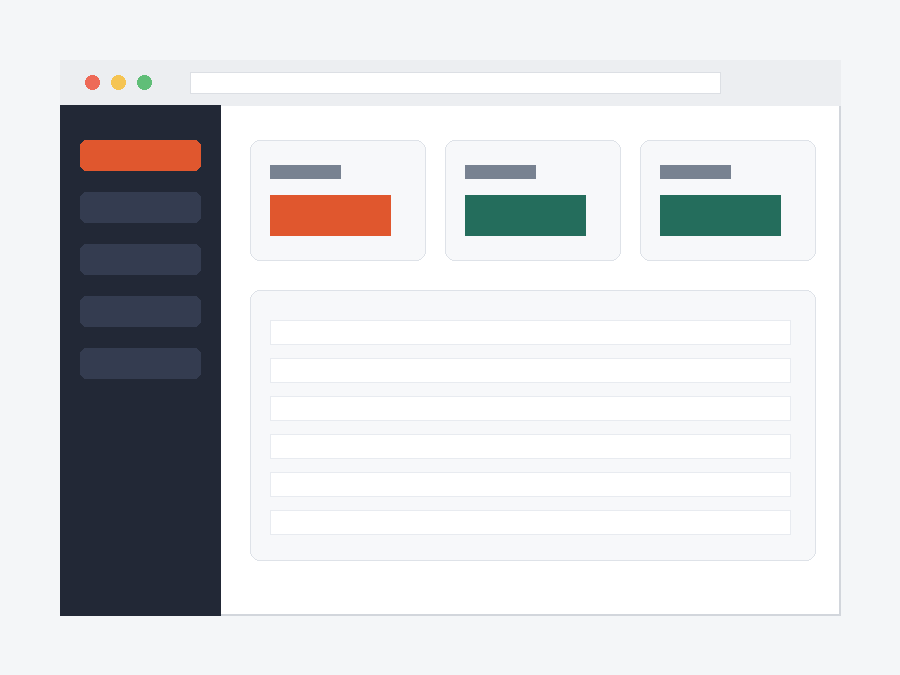
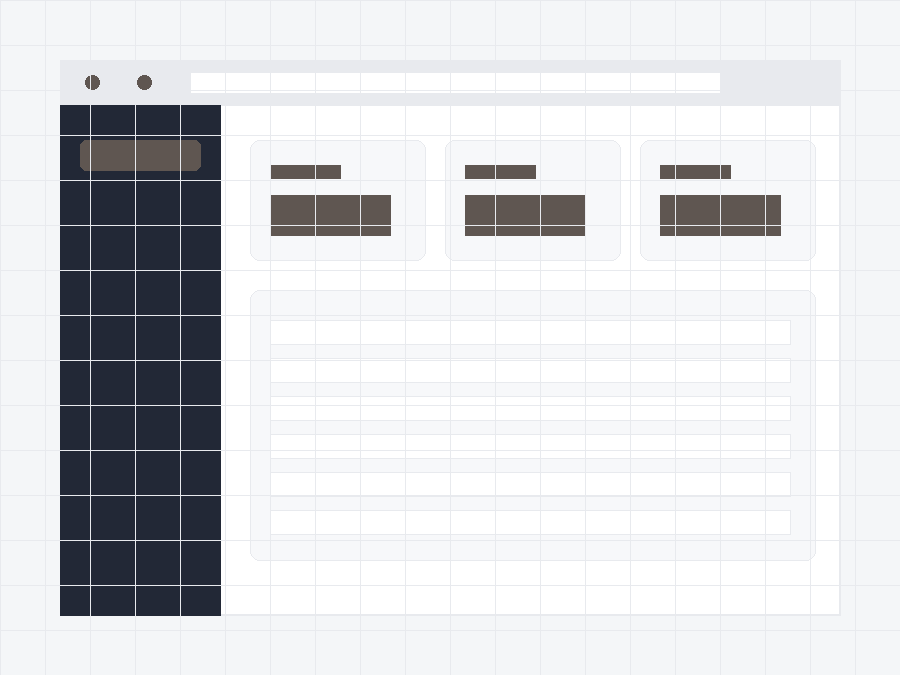
"Flat colors and crisp edges are exactly what tracing loves. In our tests, a typical UI screenshot converts to about 5 clean color layers — no cleanup pass needed, no node soup."
⇔
BEFOREAFTER
The problem
Pixels don't scale. Vectors do.
- "You need that icon, that UI element, that app graphic — bigger, recolored, or editable."
- "Re-drawing it takes an hour. A default auto-trace gives you a muddy single-layer blob."
- "Uploading client screenshots to a random server isn't an option."
The preset
Purpose-tuned for screenshots
Screenshot-optimized tracing.
A preset tuned for flat UI colors and sharp edges — the input type this engine handles best.
Color-separated layers.
Each flat color becomes its own layer, ready to recolor or delete.
Editable everywhere.
Open the SVG in Figma, Illustrator, Inkscape — or feed it to a cutter via our SVG to DXF converter.
→Need a DXF for a cutting machine? Run the result through our SVG to DXF converter →
Workflow
How to turn a screenshot into an SVG
Drop your screenshot.
Preview the layers — recolor-ready.
Download the SVG.
Free for 10 conversions a day. Pro removes the cap — $59, one time, no subscriptions.
Get CleanPaths Pro — $59, one timeFAQ
What screenshots convert best?
UI screens, icons, app graphics, flat illustrations — anything with flat colors and hard edges. Screenshots of photos come out stylized, not clean-edged.
Can I edit the SVG afterwards?
Yes — output is color-separated vector layers that open in Figma, Illustrator, Inkscape and any SVG editor.
Can I cut it on a Cricut or laser?
Yes — convert the SVG to DXF with our SVG to DXF converter, or import the SVG directly where supported (e.g., Cricut Design Space).
Do you upload or store my screenshot?
No. Conversion runs entirely in your browser — there is no upload step. We never receive, see, or store your images or the files you generate. Close the tab and they're gone; we never had them. This is how the tool is built, not a marketing claim. Details in our Privacy Policy. Screenshots can contain sensitive UI — that's exactly why this runs on your device.
Is there a daily limit?
Free tier: 10 conversions a day, full quality. Pro removes the cap — $59, one time.